Photoshop Shortcut – Using Ctrl + J (to Duplicate)
Posted on under Photoshop Tutorials, TUTORIALS
There are so many keyboard shortcuts to Photoshop’s program, that it would take me an eternity to memorize them all. But shortcuts are obviously real time savers, and it is helpful to get a few lodged in the memory banks.

Today I wanted to highlight a shortcut that is one of my favorites –>
Ctrl + J for PC (or Command + J for MAC)
What Does It Do? This is a Photoshop shortcut will DUPLICATE a selected layer.
By hitting Ctrl + J on your keyboard, you will be duplicating whatever it is you have selected. This comes in handy when you are scrapbooking and you want a duplicate of a flower, make a copy of a photo or even make a copy of a section of paper. This shortcut will save you so much time in the long run, and I guarantee you will be using it on a regular basis. First, 1) I will show you how to duplicate a layer and second, 2) I will show you how to duplicate just a selection of a layer.
1) Basic COPY or DUPLICATE of a Layer
This works perfect for duplicating an entire element, flower, a photo and so many more things.
Step One – Duplicating a Layer:
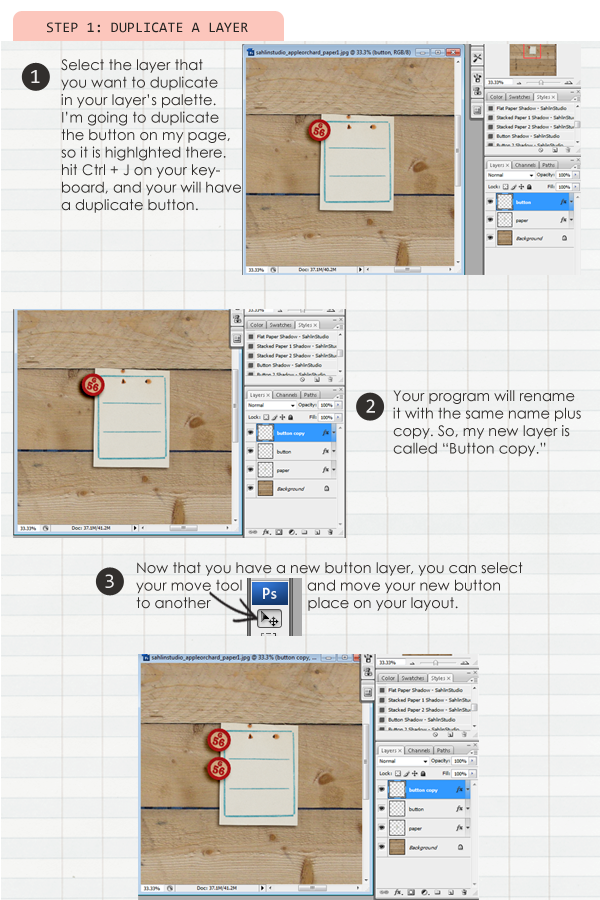
1. Select the layer you want to duplicate in your layer’s palette
2. Hit Ctrl + J on your keyboard
3. With your move tool, and new layer selected, move your layer to its new location
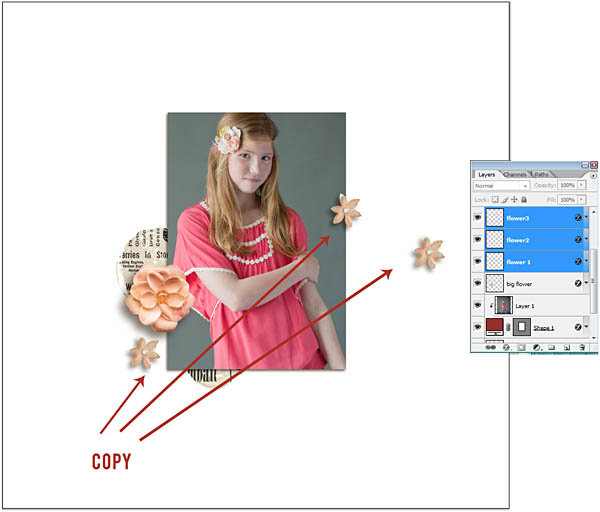
Here is another example of using the COPY (Control + J) Shortcut to duplicate flowers.
2) Copy or Duplicate a SECTION of a Layer
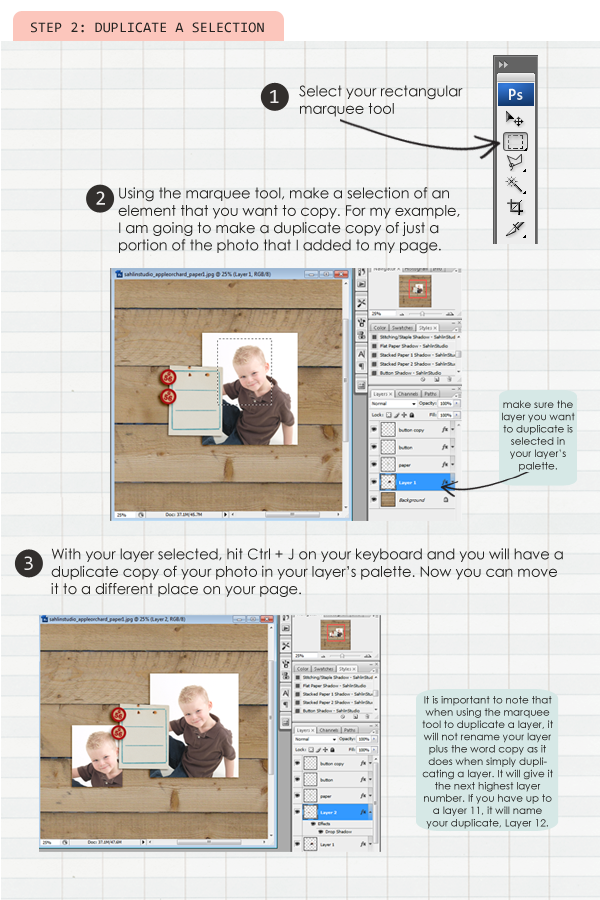
If you don’t want to duplicate an entire layer, but only a portion, Ctrl + J will do that for you as well. This works great for copying a section of a photo or paper, or if you want just a section of an element.
Duplicate a Section of a Layer using the Marquee Tool
1. Select your marquee tool (You aren’t limited to just the rectangular marquee. You can use the elliptical marquee AND/OR the lasso tool as well to make a selection. That is especially helpful because not all elements are perfectly square.)
2. Make a selection of one of your layers
3. Hit Ctrl + J on your keyboard
4. With your move tool and new layer selected, move your layer to its new location
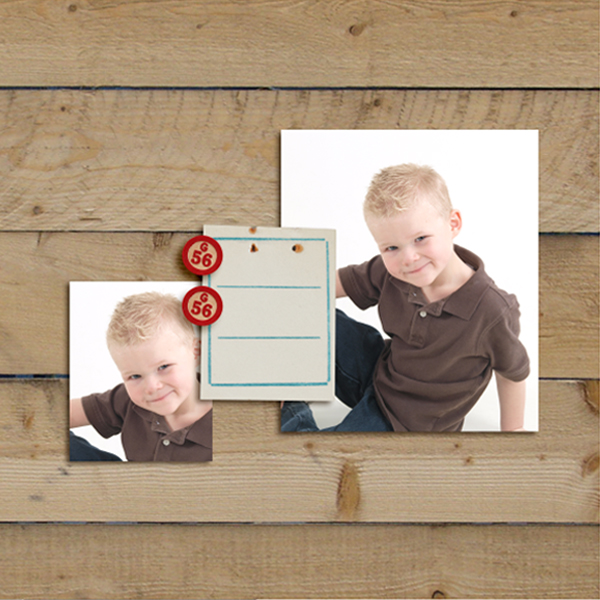
Here is the final image to show how a section of the photo was copied.
There are a variety of ways in which you can use this great shortcut! Feel free to give it a try!

June 14, 2012 at 5:38 pm
Erika says:
Great tip! I’ll definitely try that. Found your link on Pinterest via IslandMom 🙂
June 15, 2012 at 10:05 am
Krista says:
Welcome!! So glad you found the site. Be sure to check the tutorial area for more great tips!
June 14, 2012 at 6:12 pm
Jhari says:
This is indeed very useful. I used to do it like right click from the layer itself. I didn’t know that I was doing the long-cut, hahaha!
June 15, 2012 at 10:06 am
Krista says:
Get ready to save yourself from 3 clicks. HAHA!! Isn’t it awesome?
June 16, 2012 at 10:19 am
(ms.) Michael says:
Oh my gosh! I duplicate layers SO OFTEN and never used this shortcut! Doing the happy dance!!!
Thank you so much!
July 11, 2012 at 11:03 am
Tutorial | How to Create a Black and White Photo | Sahlin Studio | Digital Scrapbooking Designs says:
[…] Two – Make it POP! 1. Duplicate your photo by selecting it in the layer’s palette and hitting Ctrl + J on your keyboard. 2. Set the […]
July 16, 2012 at 2:41 pm
Favorite Photoshop Shortcuts | Sahlin Studio | Digital Scrapbooking Designs says:
[…] ants Ctrl + Z = magic UNDO button Ctrl + N = new blank file (shortcut to File>New dialog) Ctrl + J = duplicate layer (can also select a portion of a layer with the Marquee tool and use Ctrl+J to […]
October 19, 2014 at 2:42 pm
Fix Ctrl_.js Errors - Windows XP, Vista, 7 & 8 says:
[…] Tutorial | Photoshop Shortcut – Using Ctrl + J | Sahlin … – Today I wanted to highlight a shortcut that is one of my favorites -> Ctrl + J for PC (or Command + J for MAC) What Does It Do? This is a Photoshop shortcut will DUPLICATE a selected layer. […]